
Intro to Unix#
The notes below are modified from the excellent Unix Shell tutorial that is freely available on the Software Carpentry website. We highly recommend checking out the full version for further reading. The material is being used here under the terms of the Creative Commons Attribution license.
Unix and the file system#
Unix is a family of operating systems — Linux and macOS both belong to it, and the LEAP hub runs on Linux. They share common conventions for organizing files and accepting commands, so the skills you learn here transfer to nearly any system you’ll use in scientific computing.
A file system is how the operating system organizes files on disk. On Unix, files live inside directories (also called folders), and directories can contain other directories, forming a tree. The rest of this lecture will show you how to move around that tree and manipulate files in it from the terminal.
What is a terminal, and why use one?#
A terminal is a text-based interface to your computer: you type a command, the computer executes it, and the result appears below. If most of your computer use has been clicking on icons and dragging files around, this will look unfamiliar at first — but it’s much less mysterious than it looks once you’ve opened one.
So let’s open one. In your environment:
On the LEAP JupyterHub: click on Terminal in the JupyterLab launcher (or File → New → Terminal).
On Google Colab: click the Terminal button in the bottom-left corner of the Colab window.
You should see something like:
jovyan@jupyter-1234:~$
The character at the end of the prompt — $ here — tells you the shell is waiting for input. Different environments use different prompt characters (you may see $, %, #, or others). Everything before it is informational: your username and machine name, and often the current directory (where ~ is shorthand for “home”). From now on, we’ll just show $ in our examples.
Why bother learning this if GUIs exist?#
A few reasons it’s worth the effort, especially for scientific computing:
Many tools only have a command-line interface (CLI). Things you’ll use in this course —
git, package managers, data-processing utilities — have no GUI, or their CLI is much more powerful than their GUI.Reproducibility. You can write a command down, share it, paste it into a script, and run it again exactly. You can’t easily “share” a sequence of mouse clicks.
Speed. Once you know a few commands, typing them is much faster than clicking through menus and dialogs.
Remote machines. When you connect to many remote servers (HPC clusters, cloud VMs), the only interface available is a terminal.
Portability. The same Unix commands work on Macs, Linux, and the LEAP hub. Learn them once, use them everywhere.
You won’t replace your GUI overnight, and there’s nothing wrong with using both. But the terminal will quickly become indispensable.
Navigating Files and Directories#
Most of your work in the shell involves moving around the file system, looking at what’s in directories, and creating or editing files. Three commands do most of the heavy lifting: pwd, ls, and cd.
Where am I? — pwd#
pwd (short for “print working directory”) prints your current working directory — the directory the shell assumes you’re in unless you specify otherwise.
Try it
Run pwd in your terminal. You should see a path like /home/jovyan — your current working directory. On LEAP this happens to be your home directory; on other systems it may not be (more below).
$ pwd
/home/jovyan
Reference: The exact path depends on your environment —
/home/jovyanis what you’ll see on the LEAP hub, but on Colab or your own laptop you’ll see something different. The concept of “home directory” — the directory that’s “yours” by default — is the same everywhere.
To picture what /home/jovyan means, here’s how a Unix file system is organized:
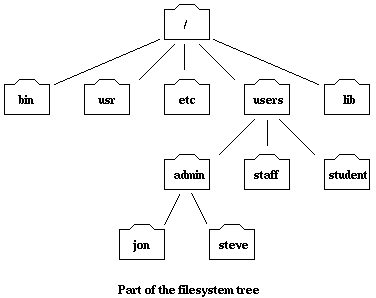
At the top is the root directory, written as /. Inside it are directories like home (where user directories live), bin (built-in programs), etc (system configuration), and so on. Your username’s directory (jovyan here) sits inside home.
Reference: If you ever want to confirm who you are or which machine you’re on,
whoamiprints your username andhostnameprints the machine name.
What’s here? — ls#
ls (“list”) shows the contents of the current directory.
Try it
Run ls in your home directory. Then run ls -F — the -F adds a trailing / to directory names, so you can tell files from folders at a glance.
$ ls
config.yaml  examples  lost+found  work  worker-template.yaml

$ ls -F
config.yaml  examples/  lost+found/  work/  worker-template.yaml
Note: Your output will look different — every environment has its own files. The examples here are just illustrative. As you follow along below, use the names that actually appear in your own
lsoutput (e.g., if you don’t have anexamplesfolder, pick whatever directory you do see).
The -F is a flag — an option that modifies how a command behaves. Most commands have many flags; ls alone has dozens.
Reference: Run
man lsto read the manual page forls(or any other command). Use spacebar to scroll,qto quit.manis your built-in reference whenever you don’t remember a flag.Reference:
ls -ashows all files including hidden ones (those starting with.). You won’t need this often, but it exists.
Moving around — cd#
cd (“change directory”) moves you into a different directory.
Try it
From your home directory, move into the examples directory (or any directory you see from ls) by running cd examples. Run pwd to confirm you moved. Then cd .. to go back up one level — .. is shorthand for “the parent directory.”
$ cd examples
$ pwd
/home/jovyan/examples
$ cd ..
$ pwd
/home/jovyan
You’ll also notice the text before the prompt usually updates as you navigate — after cd examples, the full prompt might change like this:
jovyan@jupyter-1234:~$ cd examples
jovyan@jupyter-1234:~/examples$
This is a quick visual cue showing where you are.
A few more cd patterns worth knowing:
cdwith no argument returns you to your home directory.cd ~does the same (~always means “home”).cd /home/jovyan/examplesuses an absolute path (starts with/, works from anywhere).cd examples/contentuses a relative path (relative to where you are now).
Reference:
cd -jumps to the directory you were in just before. Think of it like the “previous channel” button on a TV remote.
Tab completion#
When typing paths or filenames, press the Tab key to auto-complete. If there are multiple matches, press Tab twice to see them all.
Try it
Type cd followed by the first letter or two of any directory you saw with ls, then press the Tab key — the shell should auto-complete the rest. This will save you a lot of typing.
Working with Files and Directories#
Now that you can navigate, the next set of commands lets you create, copy, move, and delete files.
Make a directory — mkdir#
mkdir (“make directory”) creates a new directory in the current working directory.
Try it
From your home directory, run mkdir project to create a directory called project. Then run ls -F to confirm it appears (with a trailing /).
$ mkdir project
$ ls -F
config.yaml  examples/  lost+found/  project/  work/  worker-template.yaml
Create an empty file — touch#
touch creates an empty file (or, if the file already exists, updates its modification time).
Try it
Move into your new project directory with cd project, then create an empty file with touch draft.txt. Confirm with ls. You can also open draft.txt in JupyterLab’s text editor if you want to add content to it.
$ cd project
$ touch draft.txt
$ ls
draft.txt
Reference: When naming files and directories, avoid whitespace (use
-or_instead), avoid starting with-(the shell treats names starting with-as flags), and stick to letters, numbers,.,-, and_. Special characters can cause unexpected behavior.
Remove a file — rm#
rm (“remove”) deletes a file.
Warning
The Unix shell does not have a trash bin. When you rm something, it’s gone — there’s no Undo and usually no recovery. Be careful with this command, especially with rm -r below.
Try it
Delete the draft.txt you just created by running rm draft.txt. Confirm with ls — the file should be gone.
$ rm draft.txt
$ ls
Remove a directory — rm -r#
By default, rm only deletes files. To delete a directory and everything in it, use the recursive flag -r.
Try it
Move back to your home directory with cd .., then delete the entire project directory by running rm -r project. Confirm with ls.
$ cd ..
$ rm -r project
Reference: Add
-i(interactive) to eitherrmorrm -rto be prompted before each deletion — useful when you’re unsure exactly what you’re about to delete.
Move or rename — mv#
mv (“move”) renames a file or moves it to a different location. The first argument is the source, the second is the destination. If the destination is a different directory (instead of a different name), mv moves the file there.
Try it
First set things up again with mkdir project and touch project/draft.txt. Then rename draft.txt to quotes.txt by running mv project/draft.txt project/quotes.txt. Confirm with ls project.
$ mkdir project
$ touch project/draft.txt
$ mv project/draft.txt project/quotes.txt
$ ls project
quotes.txt
Reference:
mvsilently overwrites if the destination already exists. Usemv -iif you want to be asked first.
Copy a file — cp#
cp (“copy”) works like mv but makes a copy instead of moving the original.
Try it
Copy quotes.txt into a new file in the same directory by running cp project/quotes.txt project/quotations.txt. Then ls project to confirm you have both files.
$ cp project/quotes.txt project/quotations.txt
$ ls project
quotations.txt  quotes.txt
Clean up#
Try it
Now that you’ve finished, delete the project directory you’ve been playing with: rm -r project. Confirm with ls.
Summary#
You’ve now used the basic Unix commands for navigating and manipulating files:
Navigation:
pwd,ls,ls -F,cd,cd .., tab completionFiles and directories:
mkdir,touch,mv,cp,rm,rm -r
These are enough to do most file management from the command line. There’s much more to the Unix shell — pipes, redirection, regular expressions, scripting — but you’ll pick those up as you need them. For a fuller tutorial, see the Software Carpentry Unix Shell Lesson this material is based on.